PHYbio Player – User Guide
Welcome to the PHYbio Player. This guide explains how to use the app on Android and iPhone/iPad. The matching app version is shown at the top of the guide window.
Overview (Home Screen)
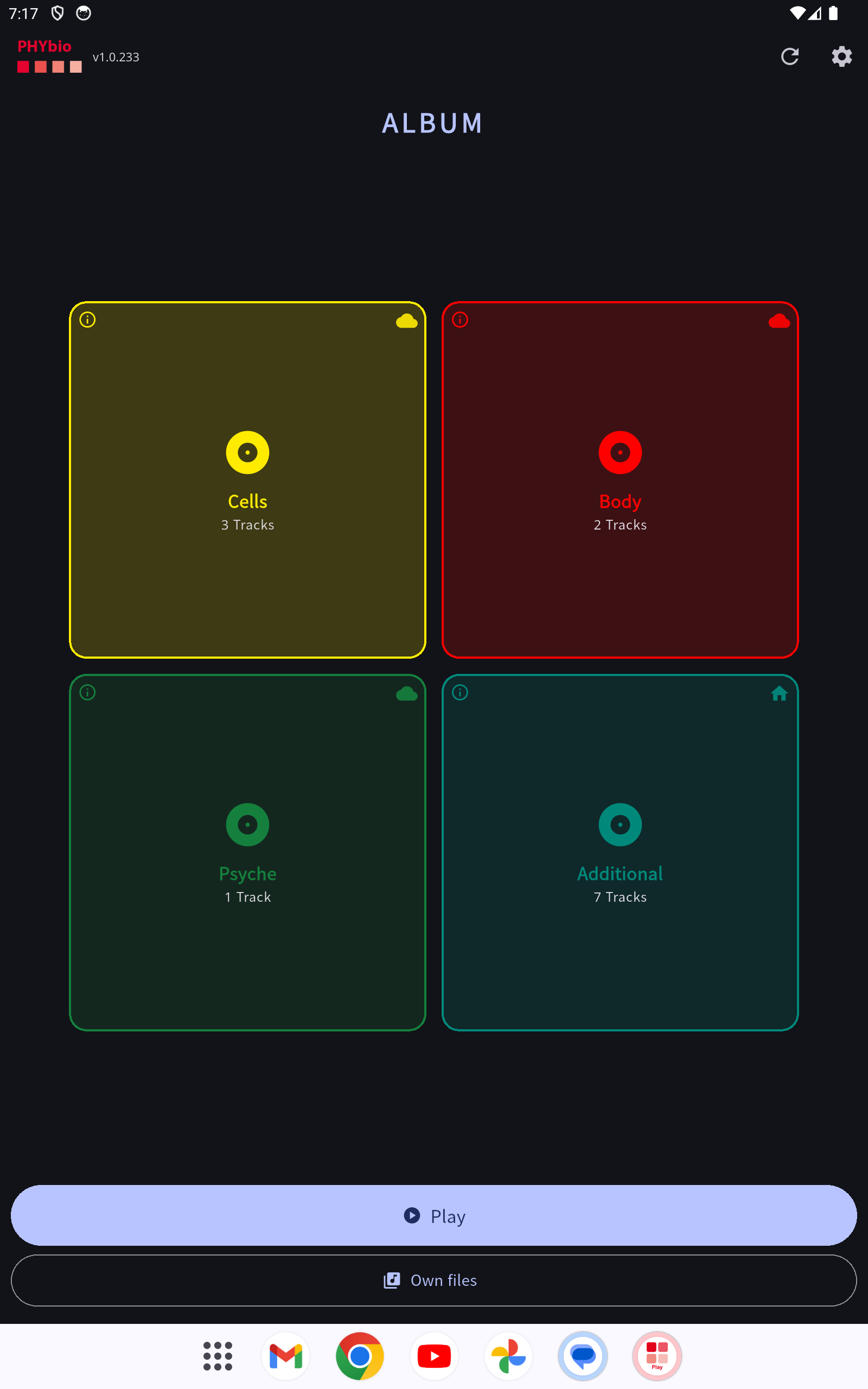 Home screen with albums as colored tiles. The installed app version is shown at the top left (here 1.0.233 – shown as an example only).
After launching, you see your albums as colored tiles (2×2 per page). More albums? Swipe left/right – the dots beneath the tiles indicate the page.
- Order: The favorite albums always come first – Cells (yellow), Body (red), Mind (green). All other albums follow alphabetically.
- Symbol in the top right of the tile (delivery status):
- 🏠 House = album is stored locally on the device. Filled house = file present (playable offline); outline = currently downloading.
- ☁ Cloud = album is streamed. Filled cloud = online (streaming possible); outline = offline.
- Tap the symbol to open the Album Storage page directly (see below).
- Tap the tile to open the album's track list.
At the bottom: - Play – wide quick-start button: opens the most recently played track at the position where it was last paused (with no history: the first track). - My Files – the audio files you have added yourself.
Track List & Player
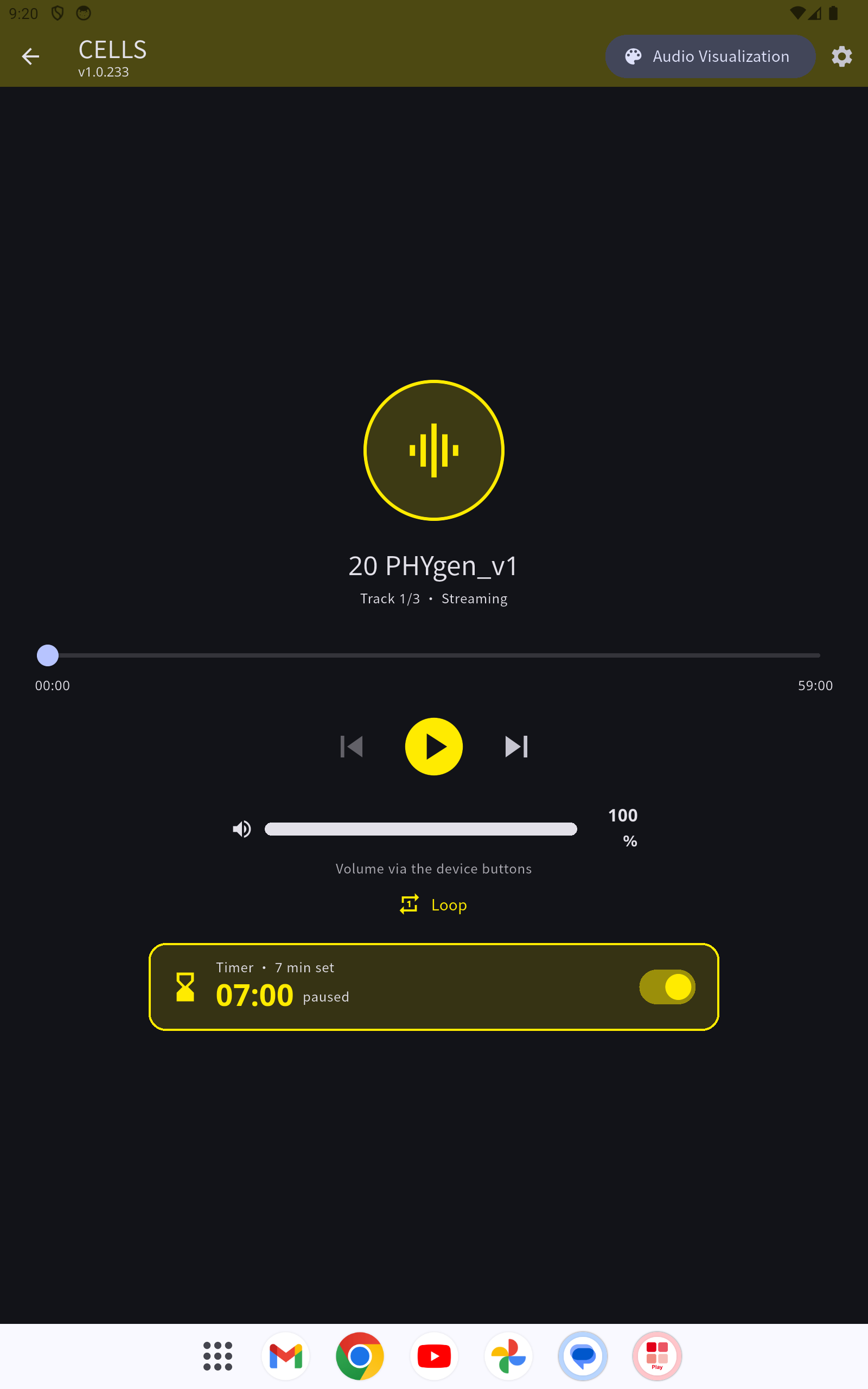 The player: playback, volume, repeat and sleep timer
In the track list, tap a track or the ▶ symbol to start playback. In the player you control start/pause, forward/back, the position and the volume. With "Repeat" the track plays on a loop (the label glows in color when repeat is active).
Timer (sleep timer): Below the controls, the timer sits as a card. The switch on the right turns it on/off – when off, the card appears pale/gray, when on it is in color. Tap the card to set the minutes, and confirm with "Apply". The timer counts down only during playback and pauses the music when it elapses. You set the default value under Settings → Timer.
Audio Visualization (Light Organ)
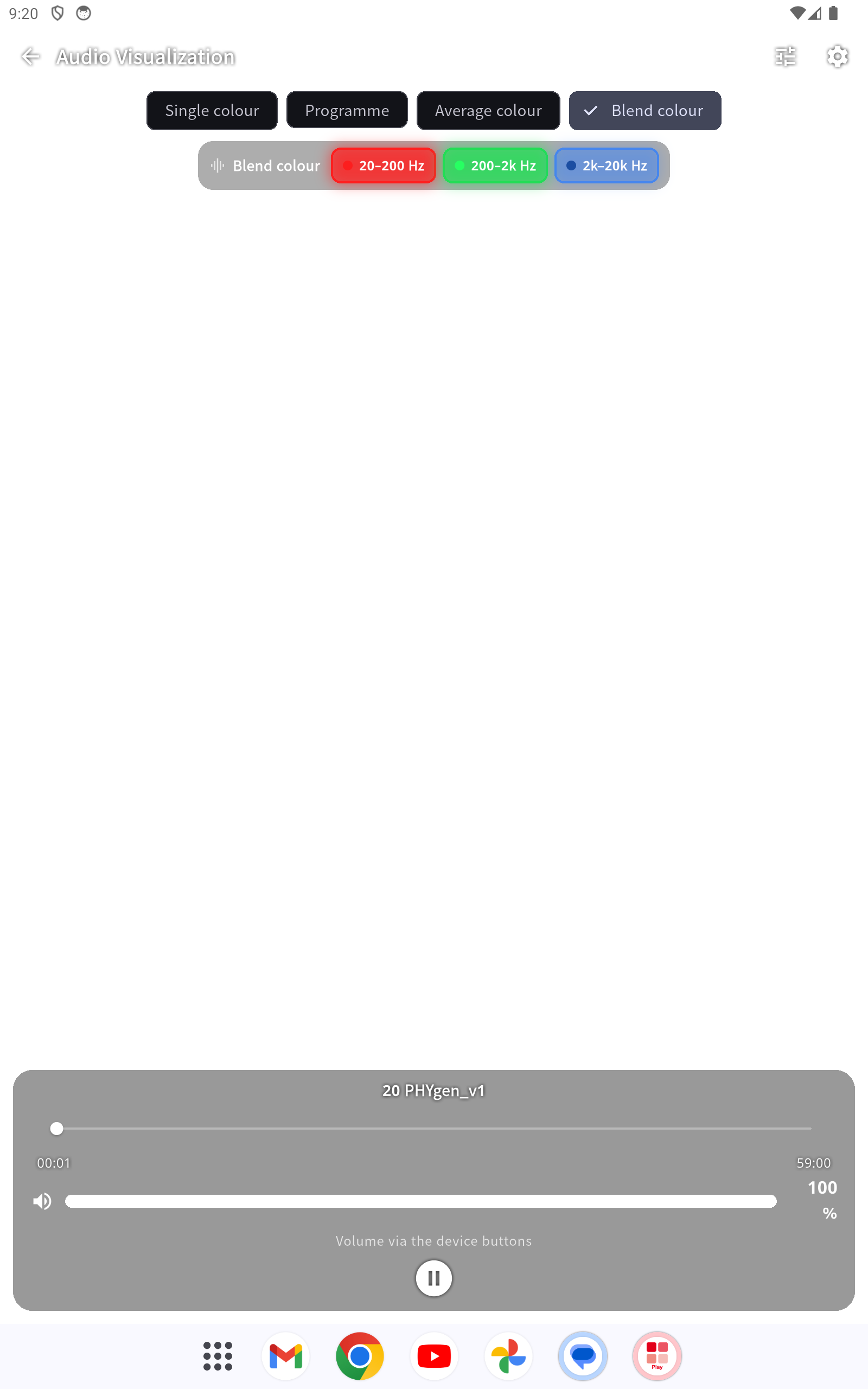 Full-screen light show – colors follow the frequencies
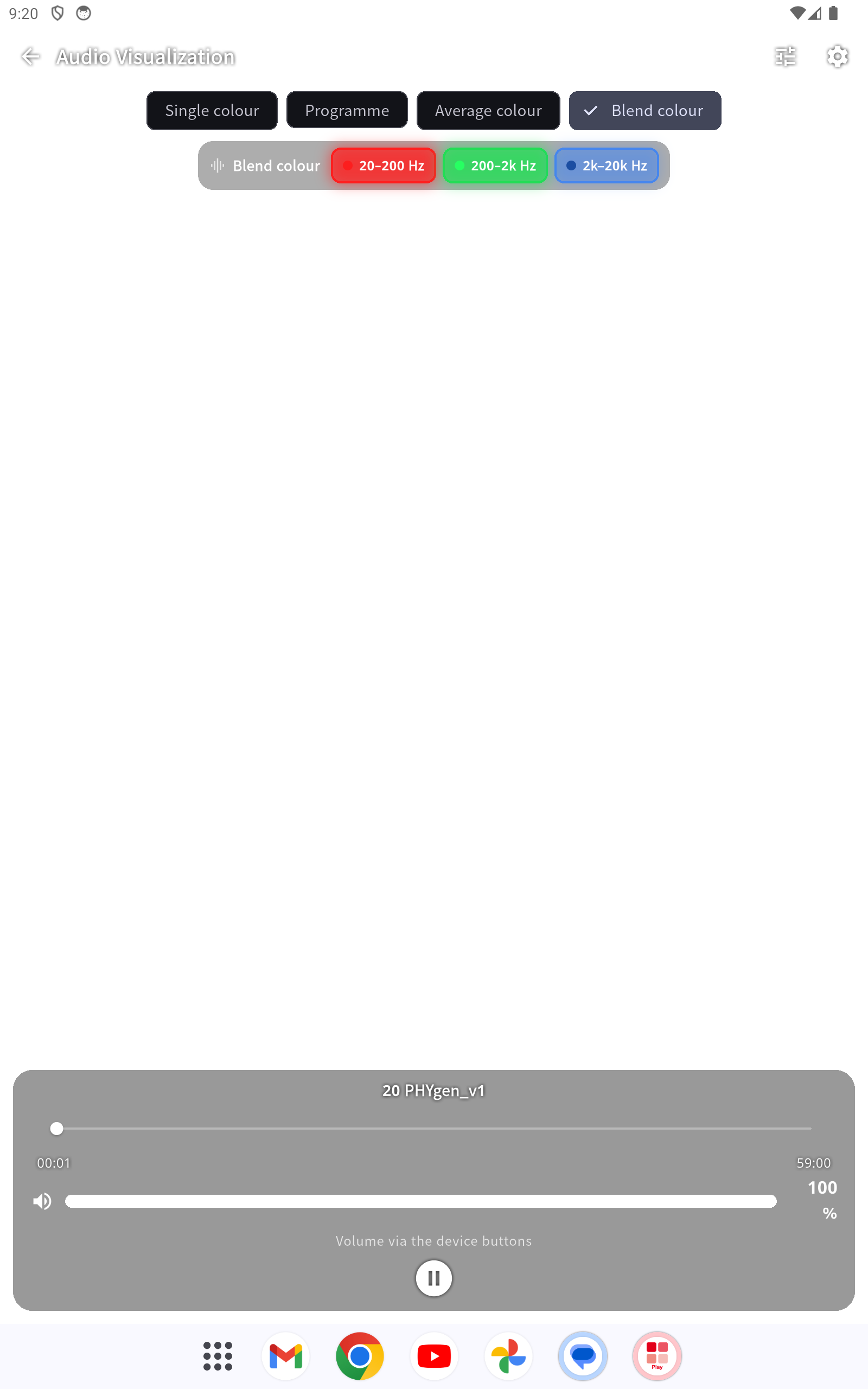 Tap once: mode bar, mixed-color legend (red/green/blue) and controls appear over the show
In the player, "Audio Visualization" opens a full-screen light show that reacts to the music. The mode bar at the top offers, among others:
- Blended color – the whole image shows a blend of bass (red), mids (green) and treble (blue); Blended color sat. keeps the colors more vivid.
- Dominant color – the loudest frequency determines the image color.
- Plus classic modes (Disco, Flow, Spectrogram …) as well as inverted (negative) variants.
When opening, a safety notice appears: people with color sensitivity or (photosensitive) epilepsy should not use the visualization. For streamed tracks, "Visualization is being prepared …" is shown briefly until enough audio has loaded – after that the image reacts to the music.
Automatic return: As soon as playback stops or pauses (e.g. because of the timer or at the end of a track without repeat), the visualization switches back to the player on its own. With repeat active it stays open.
"Additional" Album (Test & Reference Signals)
The "Additional" album is always available – before and after any purchase, without internet. It contains generated reference signals for checking playback and the light organ across the entire hearing range:
- Frequency test 20–20000 Hz – a sweep through the whole hearing range. Ideal for seeing in the Audio Visualization how the colors follow the frequencies.
- Six noise types – white, pink, brown, blue, violet and gray noise (different frequency distributions).
The tracks play like any album; the Audio Visualization is also available here.
My Files
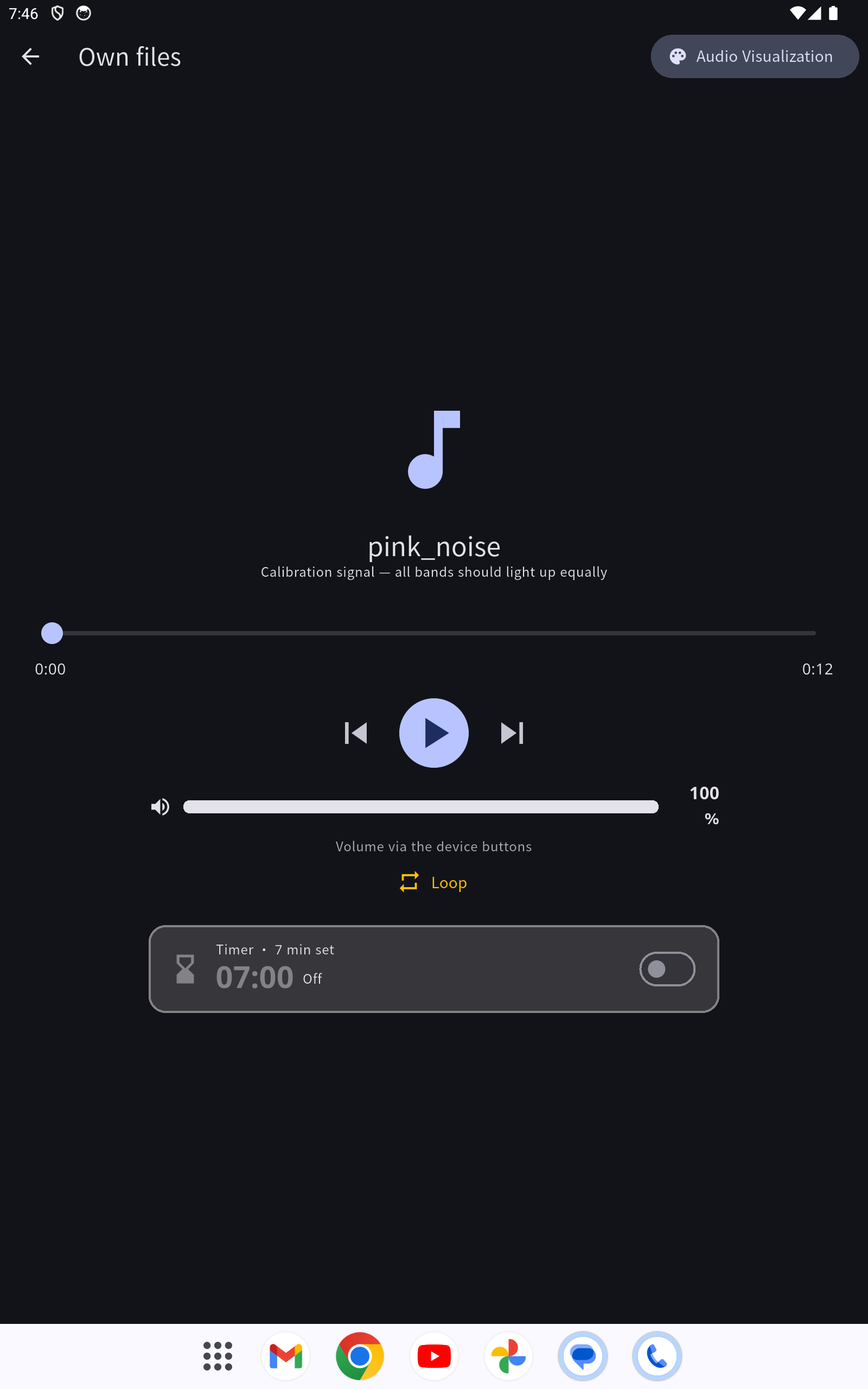 Your-own-files player with the same controls
Via "My Files" (home screen) you play your own, unencrypted audio files (MP3, WAV, FLAC …).
- Folders: At the top you see the app's default folder. With "Add folder" you select additional folders on Android via the system file picker. Selected folders are remembered until a factory reset.
- Browse: Tap a folder to navigate into it and start a track.
- Pink noise: A built-in calibration signal (plays on a loop) – for checking whether all frequency bands light up equally bright in the visualization.
The My Files player offers the same controls as the normal player: volume, repeat and its own timer. You set its default value separately under Settings → Timer for own files.
Streaming or Storing Locally (Album Storage)
Open Settings → Album Storage (or tap the house/cloud symbol of a tile). Here you see, per album, whether it is stored locally or streamed, as well as the storage used.
- Default for new albums: switchable at the top between streaming and local.
- Switch per album with the switch on the right (☁ streaming / 🏠 local).
- Local file is preferred: If an album is present locally, it is played locally – even without internet.
- Switching to streaming when a local copy exists prompts you:
- Keep local – the file stays on the device (still playable offline).
- Delete & stream – the file is deleted, storage is freed.
- Cancel – change nothing.
- A local copy you kept can later be deleted with the 🗑 symbol in the row.
- Downloading with progress: switching an album to Local downloads it; the progress is shown as a large percentage with a bar and a track counter. The album is available offline only once the download is complete (filled house icon).
- Playback source: locally stored or downloaded tracks always play locally; only what is not available locally is streamed.
Important: Locally stored albums remain subject to your license term. After it expires they can no longer be played – not even offline: the player then shows a “License expired” notice instead of playback. Renew the license (shop/subscription) and tap “Check again” to unlock playback.
Settings
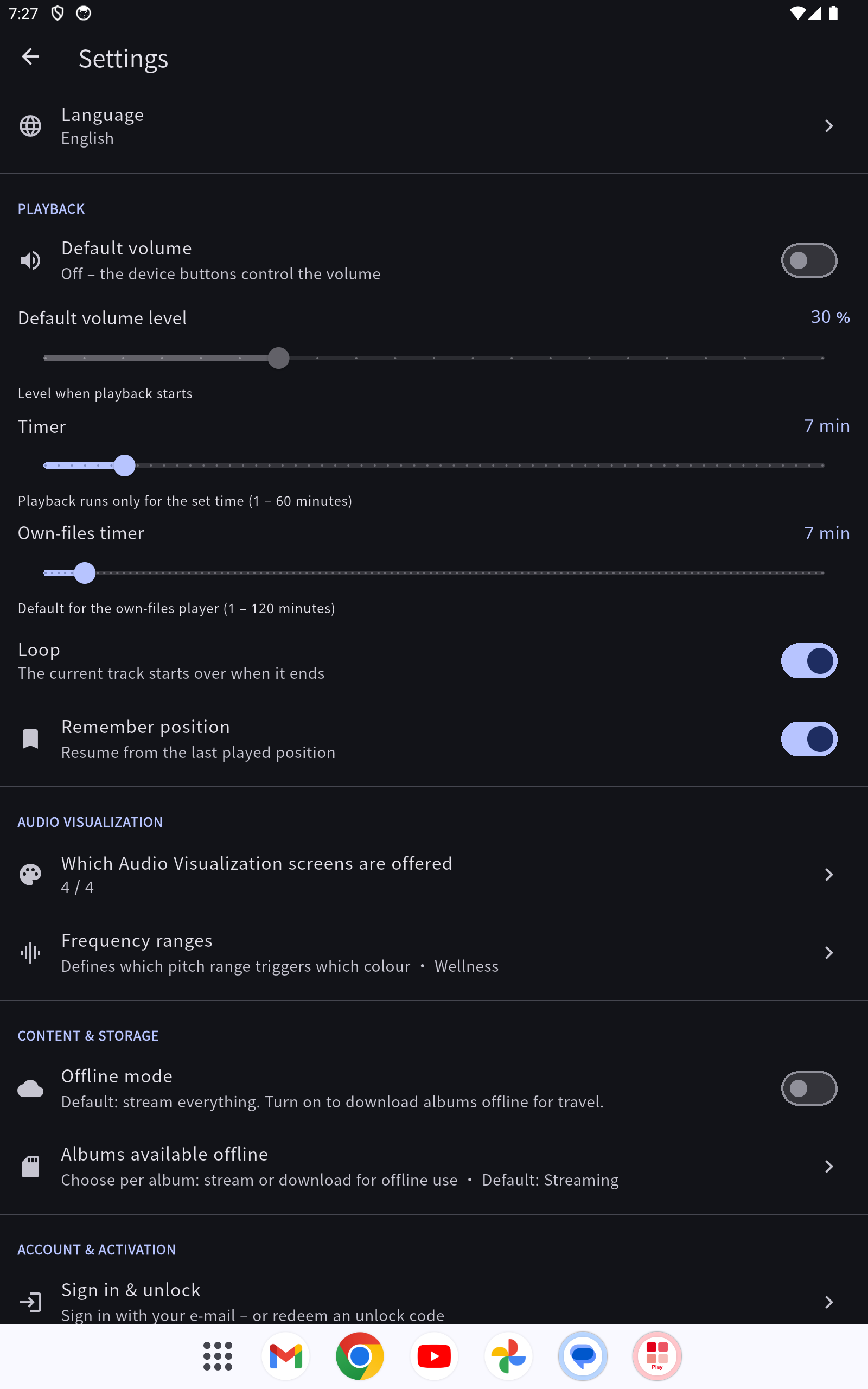 The settings with the sections Playback, Language, Comfort and "Account & activation"
- My Account / Subscriptions – your account and your subscriptions in one place. At the top you see your account details: the stored email, how many devices are active ("X of Y devices active") and the details registered to this device (device ID, platform, security level, last active). Below that your packages/subscriptions with remaining term (active / expiring soon / expired); for quota packages you select the included albums yourself. To remove the device data, see "Manage Account & Devices".
- Album Storage – streaming/local management (see above).
- Legal – Privacy Policy, Imprint and Terms of Use open directly in the app (in your chosen language).
- Guide – this user guide (version number in the header).
- Language – the app's display language.
- Default volume – a switch (off by default). When on, every playback starts at a preset volume you choose (0–100 %); when off, the app plays at full volume and you adjust with the device buttons.
- Timer – default value of the timer in the normal player (minutes).
- Timer for own files – separate default value of the timer in the My Files player.
- Update – the app automatically checks for new versions (at startup, when returning to the app and periodically). If a newer version exists, a notification banner "Update available" appears at the top and stays until you have updated. With Install the update is downloaded, verified before installation (SHA-256) and set up (Android). The current version is shown at the top left of the home screen (next to the PHYbio logo). (Note for iPhone/iPad: updates come via the App Store / TestFlight.)
Registering a Device (Setup)
So that you can play your purchased content, you register your device once: in the setup window, enter the email address you ordered with, and tap "Send confirmation". You receive a confirmation email; tapping the button in it activates the device – the window then updates automatically.
- The email field shows the placeholder "my email address" (in the chosen language).
-
Using the globe symbol at the top of the window you select the app's language directly during setup.
-
After reinstalling the app, this device signs in again automatically – the email confirmation is not needed again (as long as your licence is valid and you did not deliberately sign the device out beforehand).
Manage Account & Devices
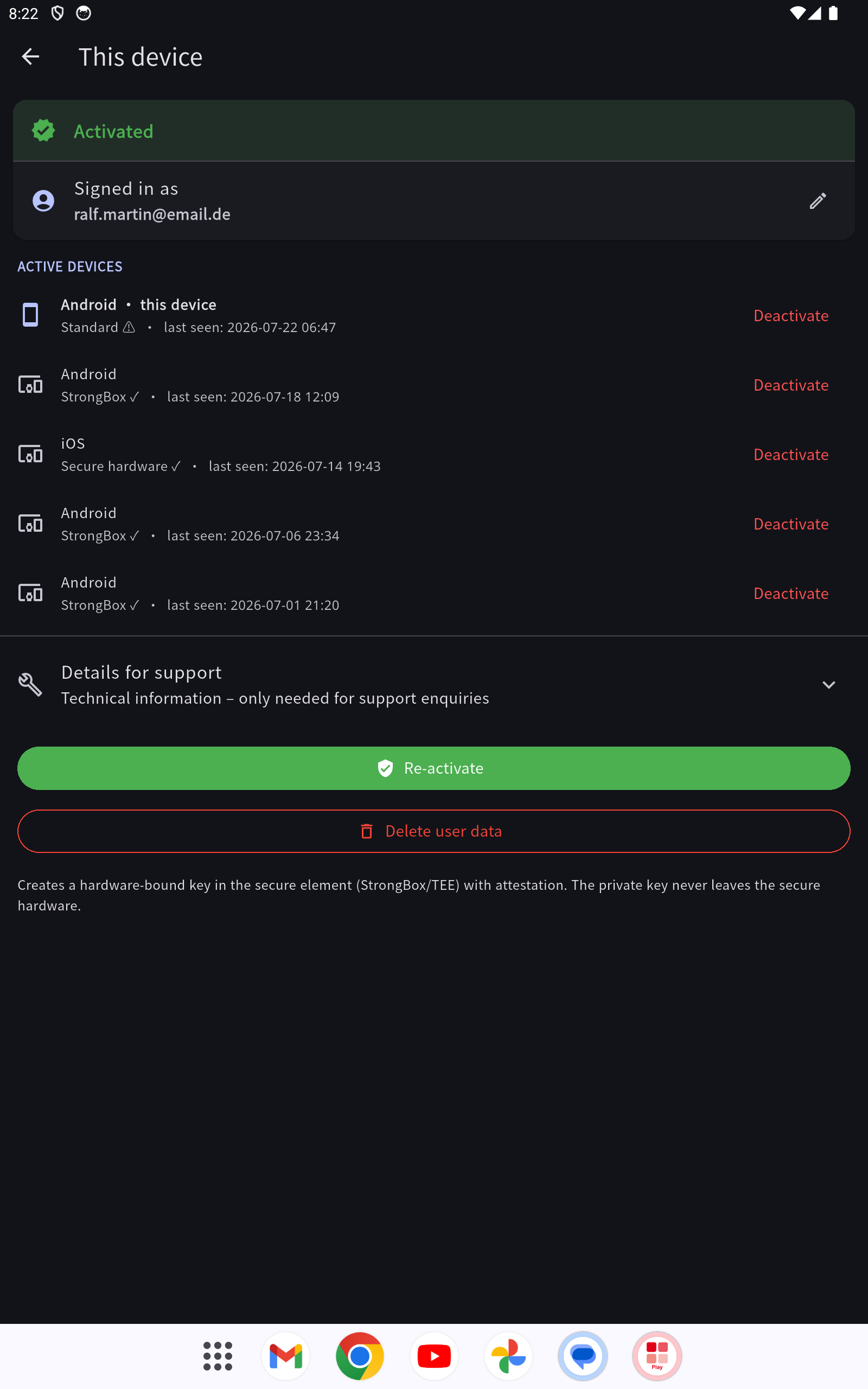 Activation: signed-in email, device status and "Deactivate device"
Under Settings → My Account / Subscriptions you see which data is registered to your device and how many devices your account uses ("X of Y devices active").
- Delete this device's data: by default removes only this one device from your account – your account, your subscriptions and all other devices remain. Albums downloaded on this device and the registration are deleted; your own music in the "Music" folder remains untouched.
- Last device: If it is your only registered device, you can choose whether to remove just this device (account and subscriptions remain for a later registration) or to permanently delete your account with all data and subscriptions. Permanent account deletion requires, for safety, the entry of the word DELETE.
New Activations
If a new album or package is activated for you, the app shows a "Newly activated" notice at startup.
HW Test / Diagnostics (Settings)
Via Settings → HW Test / Diagnostics you can check whether the app runs smoothly on your device. Before the first measurement, the app asks once for your consent: only technical device data (model, processor, memory, temperature, performance) is collected to prove stability – no personal data, no audio content. Consent can be withdrawn at any time.
- Automatic test run (recommended): Tap "Quick" – the app tests itself (playback and audio visualization) and shows a report at the end. During the run you see the current stage and the remaining time.
- Hardware performance test: "Measure" shows how much performance headroom your device has.
- Send report: Using the share symbol in the top right you can send the report to PHYbio (only after consent) – this helps us improve the app.
Help
If you have questions, contact info@phybio.com.
PHYbio Establishment · www.phybio.com